
Sommaire
In the digital age, where children have access to smartphones and tablets from a very young age, parents rightly have security concerns. Google Family Link is a free and effective solution to support your children in their discovery of the digital world while keeping a protective eye on their activities. This comprehensive guide will explain how to install, configure, and use Family Link to create a healthy and secure digital environment for your entire family.
🎯 What is Google Family Link and why use it?
Google Family Link is a parental control app developed by Google, available for free on Android and iOS. It allows parents to supervise and manage their children’s and teenagers’ digital activity in a centralized way. Unlike many other parental control solutions, Family Link is completely free, with no hidden fees or paid subscriptions.
The app works by creating a link between the parent’s Google account and the child’s Google account. Once configured, you can access a single dashboard from your phone, tablet, or computer to monitor and control your child’s devices remotely.
✅ Major advantages of Google Family Link
Here’s why millions of parents worldwide trust Family Link:
- Free: No installation cost or monthly subscription
- Easy to use: Intuitive interface and setup in minutes
- Comprehensive: Management of apps, screen time, location, and content filtering
- Multi-platform: Works on Android and iOS (partially)
- Secure: Managed by Google, one of the largest global tech companies
- Transparent: Encourages conversation between parents and children about digital usage
- Progressive: Adapts to different ages and maturity levels

Supervision with Family Link encourages an open relationship between parents and children. © Royalty-free image.
🚀 Step-by-step installation guide
Step 1: Create Google accounts
Before starting, you need to have a personal Google account (Gmail address). If your child doesn’t have one, you can create one directly through the Family Link app. Google allows children under 13 (or the minimum age in your country) to have an account managed by their parents.
Step 2: Download the Family Link app
On your parent device:
- Open the Google Play Store (Android) or App Store (iOS)
- Search for “Google Family Link”
- Download and install the official app
- Open the app and sign in with your Google account
Important: There are two different Family Link apps – make sure to download “Google Family Link” for parents and not “Google Family Link for children” on your own device.
Step 3: Configure Family Link on the child’s device
On your child’s Android device:
Step 3.2: Select “This device is for a child”
Step 3.3: Follow the instructions and create or select the child’s Google account
Step 3.4: Enter your parent email and password to validate
Step 3.5: Confirm the child’s account password
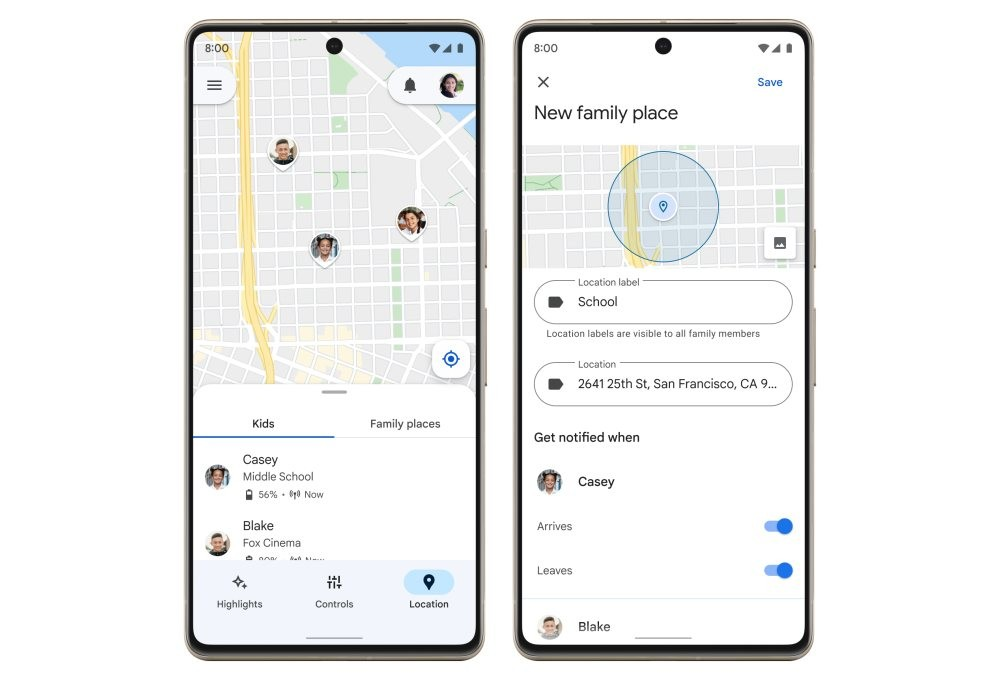
The Family Link dashboard displays an overview of your child’s activities and location. © Google LLC.
Step 4: Configure parental settings
Once Family Link is activated, return to the app on your parent device. You can now configure the settings as you wish.
⚙️ Main features to configure
1. App and Google Play Store management
This feature allows you to control which apps your child can download and use.
- Approve/Block downloads: Your child requests permission to download a new app, which you can approve or deny from the Family Link app
- Set content type: You can restrict access to certain content based on age (games rated 3+, 7+, 12+, 16+, 18+)
- Block specific apps: Select apps your child cannot use
- Recommended apps: Family Link suggests educational apps recommended by teachers
2. Screen time management
This is one of the most important features. You can set daily usage limits and bedtime schedules.
- Set a daily usage time limit
- Schedule a “bedtime” to lock the device
- Create custom schedules for weekdays and weekends
- View detailed reports of time spent on each app
3. Content filtering and SafeSearch
Family Link offers several filtering levels to protect your children from inappropriate content:
- Google Chrome: Three filtering levels available (allow all sites, block adult sites, or allow only certain sites)
- Google Search: Enable SafeSearch to filter explicit search results
- YouTube: Restricted mode to avoid videos containing sensitive content
- Google Play: Content restrictions based on age rating
4. Real-time location
One of the most reassuring features for parents is the ability to locate your child’s device in real time.
- See the exact device location on a map
- Receive notifications when your child arrives at or leaves certain places (school, home, friends)
- Make the device ring remotely to find it
- Important: This function cannot be disabled by the child – it provides constant protection
📊 Dashboard and activity reports
Once Family Link is configured, you access a centralized dashboard that displays:
- Screen time: Total usage duration and time spent on each app
- Downloaded apps: List of all installed apps
- Activity history: Overview of used apps and their duration
- Settings: Quick access to modify restrictions and limits
- Location: Map showing the exact device location
🔄 Configure Family Link on iPhone or iOS device
For iOS devices, configuration is slightly different because some features are only partially available.
Apple offers its own parental control system called Screen Time. However, you can still use the Family Link app on iPhone to:
- Supervise linked Google accounts
- Monitor Google Play purchases
- Control access to Google Chrome and YouTube
- Important limitation: Screen time limits and app locking are only available on Android
🎓 Practical tips for effective use
1. Involve your child in the process
Don’t set up Family Link “in secret.” Explain to your child the importance of digital safety and the reasons for these rules. This transparency will strengthen trust and make restrictions less counterproductive.
2. Adapt restrictions according to age
For children aged 5-8: Very strict restrictions, educational apps only
For ages 9-12: Less restrictive, but still closely supervised
For ages 13-15: More freedom, but with time limits and active filters
For 16+ years: Lighter supervision, focus on responsibility
3. Review settings regularly
As your child grows, their needs and maturity change. Review screen time limits and allowed apps quarterly, and discuss any app unblock requests.
4. Communicate openly
Family Link is a tool, not a substitute for dialogue. Talk regularly with your children about what they do online, the content they like, and the challenges they face.
⚠️ Limitations and points to know
Before you start, here are some important limitations to keep in mind:
| Limitation | Details |
|---|---|
| Age 13 | From age 13, the child can decide to stop supervision (unless you renegotiate the agreement) |
| Limited iOS | Some features (screen time, app blocking) only work on Android |
| Imperfect filters | SafeSearch and filters are not foolproof – inappropriate content can slip through |
| GPS location | Requires an active Internet connection and WiFi/mobile data enabled |
| Not available worldwide | Family Link is only available in certain countries and regions |
❓ Frequently Asked Questions (FAQ)
A: Family Link is very robust, but like any system, it can be bypassed by a tech-savvy child. The important thing is that Family Link creates a barrier and a conversation around digital safety. It’s a tool, not a magic solution.
A: You can use a pseudonym if you prefer. Family Link does not require strictly truthful information, although Google recommends using the real name for transparency reasons.
A: You can manage up to 5 children with a single Family Link parent account. If you have more children, you can create a second parent account.
A: At 13 (or the legal age in your country), your child will receive a notification indicating they can manage their account independently. You remain the parent and can continue to discuss, but they must accept supervision.
A: Yes, Family Link is 100% free – no monthly subscription, no activation fees. Google funds it.
A: Yes! You can set up Family Link on all your child’s Android devices. Each device will be supervised with the same settings.
🛡️ Best digital safety practices
Family Link is only part of digital safety. Here are other good practices:
- Regular conversations: Talk about what your children do online, the challenges they face
- Personal example: Show healthy and responsible screen use
- Screen-free zones: Ban phones at meals, before bedtime, and during homework
- Online education: Teach your children about the risks of sharing personal information
- Virtual friends: Connect with your child’s online friends to better understand their digital environment
- Content reporting: Teach them to report inappropriate content they encounter
Conclusion: A caring approach to parental control
Google Family Link is a powerful tool that, when used properly, can help your family navigate the digital world in a healthy and secure way. The key is to see it not as punitive surveillance, but as caring supervision.
The best parental control remains open communication and mutual trust. Family Link simply helps you maintain this trust while protecting your children from online dangers.
Install Family Link today and start creating a healthy digital environment for your entire family! 🌐🔐